Owning a Roomba is convenient, until it’s time to order replacement parts, troubleshoot an error code, or check if a software update applies. Without knowing the exact model, owners can waste time ordering incompatible brushes, filters, or batteries. Each Roomba series has different capabilities, maintenance needs, and compatible accessories, making proper identification essential for keeping the vacuum running efficiently. This guide walks through multiple reliable methods to determine which Roomba model is in the home, from checking physical labels to using the iRobot app, ensuring accurate identification every time.
Table of Contents
ToggleKey Takeaways
- Identifying your Roomba model is essential for ordering correct replacement parts, understanding software capabilities, and accessing proper customer support.
- The most reliable way to find what Roomba you have is by checking the label on the bottom of the unit for a three or four-digit model number or letter-number designation.
- Wi-Fi-enabled Roomba models (i-series, j-series, s-series) can be identified through the iRobot Home app by navigating to Settings and Product Information.
- Visual features like button layout, shape (including the distinctive D-shape of the s9), and docking station type help narrow down your Roomba model when labels are damaged or unavailable.
- If standard identification methods fail, contact iRobot support with photos of your robot, check original packaging or purchase receipts, or post clear images in Roomba owner communities for model identification.
- Understanding your Roomba series helps determine navigation type, mapping capabilities, and compatible features—from budget-friendly 600 series with random navigation to premium s9 models with advanced obstacle avoidance.
Why Knowing Your Roomba Model Matters
Identifying the specific Roomba model isn’t just about curiosity, it directly affects maintenance, repairs, and performance upgrades. Replacement parts vary significantly across series. A Roomba 600 series uses different filters, side brushes, and roller brushes than a Roomba i7 or j7. Ordering the wrong part means delays and return hassles.
Software updates and features are model-specific. Newer models like the j7+ support visual obstacle avoidance and smart mapping, while older 600 or 800 series units use simpler navigation. Knowing the model helps owners understand what their vacuum can and can’t do.
Warranty claims and customer support require accurate model information. iRobot support needs the model number to verify coverage, troubleshoot issues, or process returns. Without it, getting help becomes unnecessarily complicated.
Finally, resale value depends on model details. A Roomba i3 and i7 look similar but have different mapping capabilities and price points. Listing the correct model ensures fair pricing and smoother transactions.
How to Find Your Roomba Model Number
Check the Bottom of Your Roomba
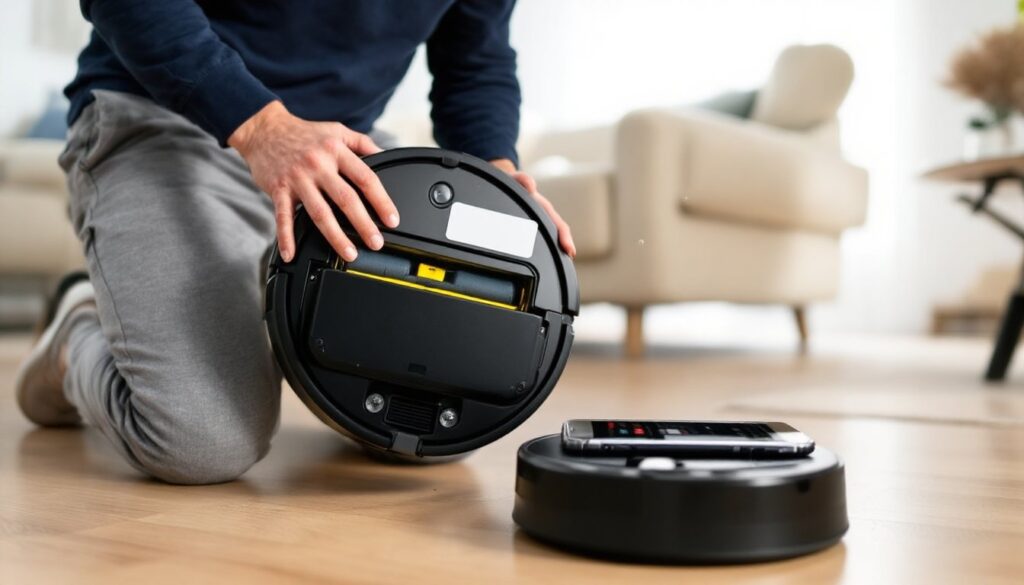
The most reliable method is flipping the Roomba over. Turn off the vacuum before handling it. On the underside, near the brushes or wheels, there’s a label or sticker with key information.
Look for a three or four-digit model number (like 675, 980, i3, j7, or s9). Some units display it clearly: others combine it with serial numbers and manufacturing codes. The model number often appears after “MODEL” or “Type.”
Older Roomba models (500, 600, 700, 800 series) typically have three-digit numbers like 614 or 880. Newer models use letters and numbers: i-series (i1, i3, i7), j-series (j7, j7+), s-series (s9), or Combo models that include mopping features.
If the sticker is worn or faded, common on units several years old, try angling it under bright light. Use a flashlight or smartphone light to illuminate faded text. Some owners photograph the label for future reference.
Use the iRobot Home App
For Roomba models that connect via Wi-Fi (i-series, j-series, s-series, some 900 series, and newer), the iRobot Home app provides instant model identification.
- Open the app on the smartphone or tablet linked to the Roomba.
- Tap the robot icon or select the Roomba from the home screen.
- Navigate to Settings (gear icon), then look for “About [Robot Name]” or “Product Information.”
- The full model name and number appear here, along with firmware version and serial number.
This method works even if the physical label is damaged. It’s especially helpful for households with multiple Roombas, the app lists each unit separately with its specific model.
If the Roomba hasn’t been set up in the app yet, it’ll need to be added. Follow the pairing instructions in the app (requires Wi-Fi and Bluetooth). Older models without Wi-Fi (500, 600, 700 series) won’t appear in the app, so the bottom label is the only option.
Identifying Your Roomba by Visual Features
When the label is missing and the app isn’t an option, visual cues help narrow down the series. This method won’t provide the exact model variant but gets close.
Button layout is a major clue. Older 500 and 600 series units have three physical buttons on top: Clean, Spot, and Dock. 700 and 800 series often add a Schedule button. 900 series models introduced a single Clean button with app-based controls. i-series, j-series, and s-series typically feature a large, centered Clean button and minimal physical controls.
Shape and size also vary. The s9 and s9+ have a distinctive D-shape with a flat front edge for corner cleaning. All other models use the classic round design. The j-series has a small front-facing camera visible as a black lens near the bumper.
Dustbin location and type differ across generations. Early models have removable bins accessed from the back or side. i-series and j-series with “+” designations (like i7+, j7+) use Clean Base docking stations that auto-empty the bin, these robots have a different bin design to accommodate the vacuum port.
Color and finish can hint at the series. Most Roombas are black or gray, but special editions or certain models come in silver, white, or copper accents. The Roomba Combo models include a visible mopping pad mount on the back.
Navigation hardware is visible on some models. Units with camera-based mapping (900 series, i7, j7, s9) have a raised top section housing the camera. Simpler models (600, 800 series) have flat tops and rely on infrared sensors and bump navigation.
Decoding Roomba Series and Generation Numbers
Understanding the series naming system helps interpret model numbers and features. iRobot uses a tiered structure based on capabilities and release years.
500 and 600 series are entry-level models released between 2007 and recent years. They use random navigation (bounce pattern), lack smart mapping, and have basic scheduling. Common models include 614, 675, and 692. The 675 and higher add Wi-Fi connectivity.
700 and 800 series (2011–2015) introduced improved suction and tangle-free rubber rollers (800 series). They still use random navigation but handle pet hair better. The 805, 860, and 880 are popular models.
900 series (2015–2019) brought camera-based navigation and mapping. The 960 and 980 can map rooms, clean in efficient rows, and resume cleaning after recharging. They lack persistent mapping (maps aren’t saved between runs).
i-series (2019–present) includes the i1, i3, i3+, i4, i7, and i7+. These use vSLAM navigation with persistent maps. The i7 and i7+ allow multiple floor maps and room-specific cleaning. The i3 and i4 are budget-friendly with mapping but without room selection.
j-series (2021–present) features obstacle avoidance using front cameras and AI. The j7 and j7+ can detect and avoid cords, pet waste, shoes, and other objects. This series is ideal for homes with pets or clutter.
s-series includes the s9 and s9+, iRobot’s flagship models. The D-shape design, powerful suction (40x stronger than 600 series, per iRobot), and advanced mapping make it the premium option.
Combo models (2022–present) like the Roomba Combo j7+ add integrated mopping to vacuuming. The mopping pad lifts when carpet is detected.
Plus (+) designation indicates models bundled with the Clean Base Automatic Dirt Disposal dock. The robot auto-empties into the dock’s bag after each run.
What to Do If You Can’t Find Your Model Information
If all identification methods fail, there are backup options.
Contact iRobot support directly. Provide photos of the Roomba from multiple angles, top, bottom, side, and close-ups of buttons and features. Support staff can often identify the model from visuals. Have the serial number ready if it’s still visible (even partially).
Check the original packaging or purchase receipt. The box lists the model number prominently. Email receipts from Amazon, Best Buy, or other retailers include model details. Search email for “Roomba” or “iRobot” to locate purchase confirmations.
Review the user manual if it’s still available. The manual cover and first pages display the model number. Manuals are also available as PDFs on iRobot’s support site by searching common model numbers until visuals match.
Use online model comparison tools. iRobot’s website and third-party sites let users compare Roomba models side-by-side. Match features (navigation type, bin capacity, app connectivity) to narrow options.
Join Roomba owner communities. Forums like Reddit’s r/roomba or iRobot’s community boards have experienced users who can identify models from photos. Post clear images and describe any known features (age, where purchased, special functions).
Once identified, write down the model number on the charging dock or in a home maintenance log. For households with multiple robots, label each dock with the corresponding model to avoid confusion during repairs or part orders.