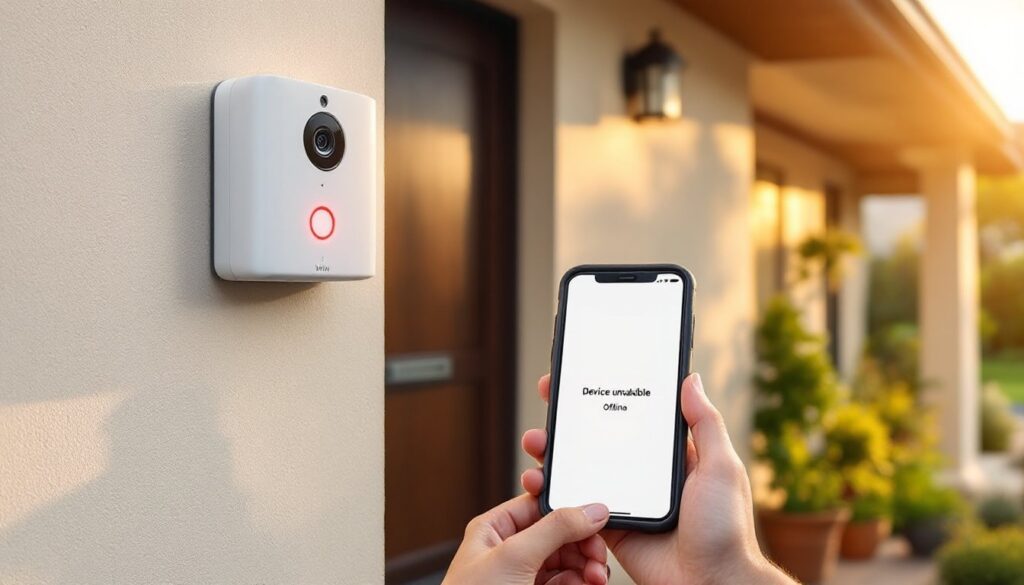
A Vivint doorbell camera going offline can be frustrating, especially when someone’s at the door and the homeowner’s phone shows nothing but a “device unavailable” notification. Whether it’s a weak Wi-Fi signal, a firmware glitch, or a simple power hiccup, most offline issues can be resolved without waiting on hold for tech support. This guide walks through the most common causes of Vivint doorbell camera connectivity problems and the step-by-step fixes that get systems back online fast. Most troubleshooting takes less than 10 minutes and requires nothing more than a smartphone and a basic understanding of home networking.
Table of Contents
ToggleKey Takeaways
- A Vivint doorbell camera goes offline primarily due to weak Wi-Fi signal, power issues, firmware bugs, or router changes, and most problems can be fixed in under 10 minutes with basic troubleshooting.
- Check Wi-Fi signal strength (aim for at least 2 bars or 50%), run speed tests to confirm at least 2 Mbps upload speed, and reposition your router or add a Wi-Fi extender if the doorbell is more than 30 feet away.
- Power cycle your doorbell by flipping the breaker (hardwired) or removing the battery for 30 seconds (battery-powered) to clear temporary software glitches and re-establish network connection.
- Update the Vivint app, check for firmware updates to the doorbell and control panel, and force-close the app after updating to eliminate compatibility conflicts.
- Perform a factory reset by holding the reset button for 15–20 seconds, then reconnect the doorbell to your 2.4 GHz Wi-Fi network using the correct password, as this resolves persistent issues caused by corrupted settings.
- Contact Vivint support if the doorbell won’t power on after reset, displays continuous red LED warnings, reconnects then drops offline repeatedly, or if multiple devices are offline simultaneously.
Why Does Your Vivint Doorbell Camera Go Offline?
Vivint doorbell cameras rely on a constant connection to both power and the home’s Wi-Fi network. When either link fails, the device drops offline and stops sending alerts or recording footage.
Wi-Fi connectivity is the most common culprit. Doorbell cameras installed near exterior walls, inside metal siding, or far from the router often struggle with weak signal strength. Interference from other 2.4 GHz devices, baby monitors, microwaves, cordless phones, can also degrade performance.
Power issues rank second. Hardwired doorbells draw power from the home’s existing doorbell transformer, which must supply at least 16V AC for most Vivint models. If the transformer is undersized (common in older homes) or wiring connections have corroded, the camera may boot intermittently or fail to maintain a stable connection.
Firmware bugs occasionally cause devices to disconnect after automatic updates. Vivint pushes over-the-air updates to improve security and add features, but sometimes a patch triggers compatibility issues with specific router models or app versions.
Router changes also disrupt service. Swapping out a router, changing the Wi-Fi password, or switching between 2.4 GHz and 5 GHz bands without updating the doorbell’s settings will leave the camera searching for a network that no longer exists.
Understanding which factor is at play helps prioritize troubleshooting steps and avoid wasting time on fixes that don’t address the root cause.
Check Your Wi-Fi Connection and Signal Strength
Before touching the doorbell itself, confirm that the home’s Wi-Fi network is functioning and reaching the installation location with adequate signal.
-
Open the Vivint app and navigate to the doorbell camera’s device page. Look for signal strength indicators, most apps display bars or a percentage. Anything below two bars or under 50% signal suggests the camera is too far from the router or blocked by building materials.
-
Run a speed test on a smartphone or tablet while standing next to the doorbell. Use a free tool like Speedtest by Ookla. Vivint recommends at least 2 Mbps upload speed for reliable video streaming. If speeds fall short, the router may need repositioning or upgrading.
-
Check for network congestion. Too many devices connected to a single 2.4 GHz band can saturate bandwidth. Log into the router’s admin panel (usually via a web browser at 192.168.1.1 or 192.168.0.1) and review the list of connected devices. Disconnect any that aren’t actively in use.
-
Switch to a less crowded Wi-Fi channel. Neighboring networks on the same channel create interference. Most modern routers support automatic channel selection, but manually selecting channels 1, 6, or 11 on the 2.4 GHz band often improves stability. Consult the router’s manual for instructions.
-
Consider a Wi-Fi extender or mesh system. If the doorbell is more than 30 feet from the router or separated by exterior walls, a range extender or mesh node placed halfway between the router and the doorbell can boost signal. Products from TP-Link, Netgear, or Eero work well in most residential setups.
If Wi-Fi strength and speed check out but the doorbell remains offline, move to power-related troubleshooting.
Power Cycle Your Vivint Doorbell Camera
A simple reboot clears temporary software glitches and re-establishes the connection between the doorbell and the network. This fix resolves a surprising number of “Vivint doorbell camera not working” complaints.
For hardwired Vivint doorbells:
-
Locate the home’s doorbell transformer. It’s typically mounted in the basement, garage, or utility closet near the electrical panel. It looks like a small metal box with two thin wires running to the doorbell.
-
Turn off the breaker that supplies power to the transformer. If the breaker isn’t labeled, switch off the main breaker to be safe. Use a non-contact voltage tester (about $15 at any hardware store) to confirm the transformer is de-energized before touching wires.
-
Wait 30 seconds, then flip the breaker back on. This full power cycle forces the doorbell to reboot from scratch.
-
Watch the doorbell’s LED indicator. It should pulse or glow solid (depending on the model) within 60 seconds, signaling that it’s reconnecting to Wi-Fi.
For battery-powered Vivint models:
-
Remove the doorbell from its mounting bracket by pressing the release tab on the bottom or side (varies by model). Consult the installation guide if the release mechanism isn’t obvious.
-
Pull the battery pack and wait 30 seconds before reinserting it. Make sure the battery is fully charged, low voltage can mimic offline issues.
-
Remount the doorbell and wait for the LED to indicate reconnection.
If the camera comes back online, the issue was likely a transient software hang. If it stays offline, continue troubleshooting.
Update Your Vivint System and App
Outdated firmware or app versions can cause compatibility conflicts that knock the doorbell offline. Vivint periodically releases updates to patch security vulnerabilities and improve device stability.
Update the Vivint mobile app:
-
Open the App Store (iOS) or Google Play Store (Android).
-
Search for “Vivint” and check if an update is available. Install it if prompted.
-
After updating, force-close the app (swipe up from the app switcher on iOS or tap “Force Stop” in Android settings) and reopen it. This clears cached data that might interfere with device communication.
Check for firmware updates:
-
Open the Vivint app and tap the menu icon (three horizontal lines).
-
Navigate to Settings > System > Device Firmware.
-
If an update is available for the doorbell camera, tap Install Now. The doorbell will reboot automatically once the update completes, this can take 2 to 5 minutes. Don’t interrupt power during this process.
Update the Vivint panel (if applicable):
Some systems require the main control panel to be on the latest firmware for peripheral devices like doorbell cameras to function properly.
-
From the panel’s home screen, tap Settings > Advanced Settings. Enter the installer or master code (default is often 2203 or the homeowner’s custom code).
-
Tap System Tests > Update Firmware. Follow on-screen prompts.
After all updates are installed, check the app to see if the doorbell has reconnected. If not, proceed to a full reset.
Reset and Reconnect Your Doorbell Camera
A factory reset wipes all saved settings and forces the doorbell to reconnect from scratch. This step resolves persistent issues caused by corrupted configuration files or botched Wi-Fi credentials.
Before resetting, gather the home’s Wi-Fi network name (SSID) and password. The doorbell will need to be re-added to the network as if it were brand new.
Perform a factory reset:
-
Locate the reset button on the doorbell. On most Vivint models, it’s a small pinhole button on the side or back of the device. Use a paperclip or SIM ejector tool to press it.
-
Press and hold the reset button for 15 to 20 seconds. The LED indicator will flash rapidly, then go dark. Release the button.
-
Wait 60 seconds for the doorbell to reboot. The LED should begin pulsing, indicating it’s in pairing mode.
Reconnect the doorbell to Wi-Fi:
-
Open the Vivint app and tap Add Device (or the + icon on the devices screen).
-
Select Doorbell Camera from the list of available devices.
-
Follow the on-screen instructions to scan the QR code on the doorbell or enter the device ID manually (printed on the back or inside the battery compartment).
-
When prompted, select the home’s 2.4 GHz Wi-Fi network (Vivint doorbells don’t support 5 GHz). Enter the password carefully, typos are a common source of failed reconnections.
-
The app will confirm when the doorbell has successfully connected. Test the live feed to verify functionality.
If the reset doesn’t resolve the issue, the problem may be hardware-related or tied to account settings that require professional intervention.
When to Contact Vivint Support
Some offline issues fall outside DIY troubleshooting and require Vivint’s technical support team or a service call.
Call Vivint if:
-
The doorbell won’t power on at all after a power cycle and reset. This often indicates a failed transformer (common in homes built before 2000) or internal hardware failure.
-
The LED blinks red continuously or displays an error pattern. Consult the user manual for error code meanings, but most require manufacturer intervention.
-
The device reconnects briefly, then drops offline within minutes. This pattern suggests the doorbell’s Wi-Fi radio is failing or the device is caught in a boot loop caused by defective firmware.
-
Multiple Vivint devices are offline simultaneously. This points to an issue with the Vivint panel or account provisioning rather than an individual doorbell problem.
Vivint support contact options:
-
Phone: Call the number on the back of the Vivint panel or the confirmation email from initial installation. Have the account number and device serial number ready.
-
Live chat: Available through the Vivint app under Support > Chat with an Agent.
-
Service appointment: If the technician determines the issue is hardware-related, they’ll schedule an on-site visit. Check the warranty status first, Vivint typically covers equipment failures under a limited warranty, but out-of-warranty repairs may incur a service fee.
For hardwired installations, if the transformer voltage measures below 16V AC (test with a multimeter), a licensed electrician may need to upgrade the transformer to a higher-capacity model, usually a 16V 30VA unit available at home centers for about $20. This is a straightforward swap for anyone comfortable working with low-voltage wiring, but local electrical codes may require a permit or licensed installer.
Conclusion
Most Vivint doorbell camera offline issues stem from Wi-Fi signal problems, power interruptions, or software glitches, all fixable with basic troubleshooting. Start with the easiest steps: check signal strength, power cycle the device, and update firmware. If those don’t work, a factory reset usually does the trick. For persistent hardware failures or multi-device outages, Vivint support can diagnose deeper issues and arrange service if needed. With these steps, homeowners can restore reliable doorbell camera operation and get back to monitoring the front porch without unnecessary downtime.